Monday, January 21, 2013

New Features in Ax 2012 R2:

   A. AX 2012 R2 is compatible with the microsoft newly launched products which are as--


1.       Window Server 2012
2.       Windows 8 (Client)
3.       System Center 2012
4.       Visual studio 2010
5.       SharePoint 2013
6.       Office 2013
7.       SQL server 2012   
    
B.   Other feature are as- 

      1.  12 role centers and 4 cues added in r2
      2. 11 new country introduce in R2 earlier it was for 25 country only
    3. DATA MIGRATION FRAMEWORK(DMF)  used Import ,Export Data and migration of data from AX 2012 , DMF based on SSIS , It include more than 20 scenario and we can make own scenario if needed
 

Happy DAXing !!!

Data partition in Ax 2012 R2

Hi freinds we are jump in the another interesting fact of the AX 2012 R2.
i.e. new feature of AX 2012 R2

Data Partition in Ax 2012 R2: 
It is a powerful feature of the Ax 2012 R2 .Just for the every installation there is a default legal entity "DAT", same there will be default partition called “Initial". and we can also make other partition too to seperate application data.
Couples of the feature associated with partition are as:
  •  It has been achieved by introducing a new table property  i.e. "SaveDataPerPartition" on the tables.
  • A data partition helps sharing the Ax install base but not the data
  • There can be companies with the same name in multiple partitions.
  • Intercompany doesn’t work across partitions
  • The companies between two partitions cannot be merged and Intercompany features cannot be used. The only option is to use Data migration tool kit for data export import between partitions
  • we can know the current partition through ‘getcurrentpartitionrecid()’ similar to ‘curext()’
  • We can create company with same name in different partition.
  • Share System Data like Batch Job, AIF port etc. Across the Partition
  • Share Application Data like User, Product, Location, Parties etc. within the partition
Happy DAXing !!!

Friday, January 18, 2013

Ax 2012 CU3 Upgrade from AX 2012


CU3 Upgrade process flow

Hi freinds we are again here to jump in an interesting stuff that is upgrade to CU3 from Ax 2012 or Ax 2012 feature pack and if you are thinking abt R2 upgrade it will help you because for R2 upgrade first we have to upgrade it to CU3.


Note: Take your production backup before start the upgrade

  1. Following are the steps to upgrade AX 2012 Feature pack to AX 2012 CU3  Record the Kernel and Application before run cu3 setup


2.   Run CU3 setup without selecting data base


3. Following screen shot indicate all selected component installed without any error or warning


4.  Run the following utility command to update the schema

a. For Stand alone system
     
             axutil.exe schema /db: target model database name


b. For 3 tier architecture 
                    axutil.exe schema /db: target model database name /s:server name


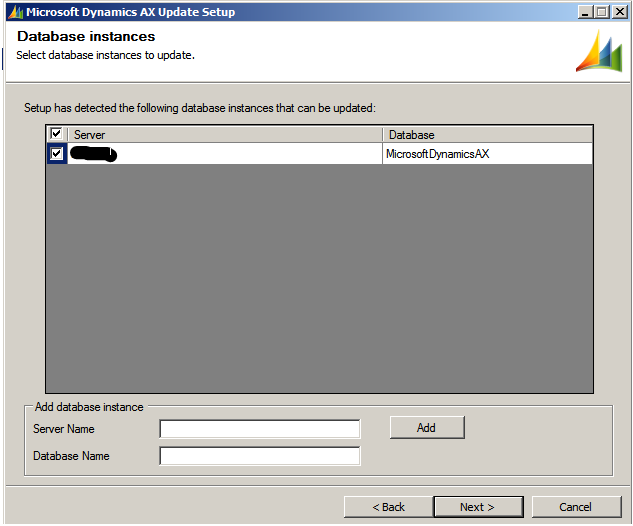
5. Rerun the setup with data base selection


6. Choose concern Server and data base


7. Following screen prompt when start the AX 2012


8.    After clicking ok on the prompt screen it will open check list and also explicitly we can open check list with following path

System Administrator -> Check list -> Software update checklist 
Following screen shot shows all the check list component completed
9. We can analyze the upgrade version from the following screen which now changed after the installing CU3 and running the check list


After the CU3 upgrade now we can upgrade it to R2 too.

Happy DAXing !!!!

Upgrade from Ax 2012 to AX 2012 R2


In-Place upgrade Ax 2012 R2:

Hi freind it's really good news that Ax 2012 R2 launched now with strong feature but same time it create new task for that customer which already have running AX 2012 and AX 2012 feature pack
that is upgrade these version to AX 2012 R2. For this we have first upgrade Ax 2012 or Feature pack to AX 2012 CU3 and then follow the following steps-- 

The recommended approach for the in-place upgrade(upgrade from ax 2012 or ax 2012 feature pack to Ax 2012 R2) requires three system as:
1. Production: Existing system which you want to upgrade
2. Test: Copy of the production system to upgrade data base architecture
3. Development: to upgrade the code and metadata

Process flow through the above architecture are as--


Step 1:
In the earlier version we have the business data and model stores in the same data base
So in the first step on the test system data will split in the two different data base one is business data and other is model stores.
Note: But in this process all the additional component like EP, Reporting services, Analysis service and retail component does not exist on the test system, Means add only Database, AOS, Debugger and Client while run AX 2012 R2 setup.

After running the R2 setup export the Upgraded models

Steps 2:
 Make duplicate copy of test on the development system and upgrade customer models


Steps 3:
Import the upgraded model on the test system and complete the data upgrade in the test system

Step 4:
Run the setup on the production system and complete the checklist
At the time running check list use the upgraded data and the models

Steps 5:
Upgrade the additional components like EP, Reporting Services etc

Steps 6:
Upgrade the Clients

Happy DAXing !!!!

Thursday, January 10, 2013

Model, Model Stores and Base Line Data base in ax 2012

Model, Model Stores and Base Line Data base in ax 2012:

The model store is the database where all application elements for Microsoft Dynamics AX are stored. Customizations are also stored in the model store. The model store replaces the Application Object Data (AOD) files that were used in earlier versions of Microsoft Dynamics AX.
Important
In Microsoft Dynamics AX 2012 R2, the model store was moved into a database that is separate from the business database. The name of the model store consists of the name of the business database plus _model.

Layer information and model information are integral parts of the model store. The Application Object Server (AOS) has access to the model store. The AOS manages layer flattening or overshadowing at runtime. That is, when you make an object modification in one layer, the modification overshadows the object on a lower layer at runtime. You could, for example, decide to change a caption on a standard form. The change is saved on your layer only, and the revised—or flattened—form replaces the standard form at runtime. The AOS also provides all the Microsoft Dynamics AX subsystems with model data, such as form rendering, report rendering, and X++ code.
Microsoft Dynamics AX contains sixteen layers. Each layer consists of one or more logical parts called models. A model is generated for each layer. For example, VAR Model is the model that the system generates for the VAR layer. The system-generated models let you install and work with the base Microsoft Dynamics AX system. When you customize the Microsoft Dynamics AX program, you can take advantage of the capabilities of models.
The model store is used in the following ways in Microsoft Dynamics AX:
  • Installation – During installation, the Setup program uses axutillib.dll to import the .axmodel files from the installation path into the model store.
  • Upgrade – During an upgrade, the application files, or AOD files, from the earlier version are imported into the model store, which is the new model. The application files are also imported into the baseline model store, or the model store for the earlier version of the metadata. The baseline model store is similar to the old folder in earlier versions of Microsoft Dynamics AX.
  • Development environment – In the development environment, developers can continue to use .xpo files to export and import code. Use .axmodel files to migrate application elements from one environment to another, such as from a development environment to a test environment. Export models from the source system to .axmodel files, and then import .axmodel files into the target system.
  • Run time – At run time, an Application Object Server (AOS) instance retrieves the application elements, such as forms, reports, and classes, from the model store to respond to client requests.
The following diagram provides an overview of the model store architecture.


Note: Above post has taken from MSDN

Happy DAXing !!!

Friday, October 19, 2012

How to delete layers in Ax 2012:

How to delete layers in Ax 2012:
1. Go to Start-> Administrative tool-> Ax 2012 management shell
2. For example we want to delete user model so type following command:
axutil delete /layer: usr
3. and press enter and put y when prompt for confermation of deletion as shown in secrren shot


Note: Take the back up before exicuting this command and try this first on test server

Happy coding !!!!!

Friday, October 5, 2012

How to Enable or disable any report Section (header, Footer, Page Header, Page Footer etc.) by X++ in Ax 2009

As we know in report Section (header, Footer, Page Header, Page Footer etc) property does not exist visible node so we can do that from following code by writing this in fetch method according to the logic

        reportSection = this.design().sectionName('PageFooter');
        this.enablePageFooter(); // this is used to enable page footer
        this.disableSection(PageFooter);// used for Report section
        this.enableSection(reportSection);

Thursday, September 20, 2012

How to Import CSV files and how make Log files in Ax 2012 through X++

Through following code we can import data in Data base and can make log file for details !!!!

static void CsvFileReadAndInsert(Args _args)
{
    Dialog      dialog  = new Dialog();
    DialogField dialogField;
    AsciiIo importFile,logFile;
    str filePath,fileNameOnly;
    filetype type;
    container record;
    CustTable custTable;
    CustAccount custAccount;
    CustName custName;
    CustGroupId custGroupId;
    CustCurrencyCode custCurrencyCode;
    DirPartyTable dirPartyTable;
    int totalRecords, totalInserted,totalFail;
;
    dialogField=dialog.addField(extendedTypeStr(FilenameOpen),"Select File","Select file to import");
    dialog.caption("File Picker");
    dialog.filenameLookupFilter(['csv','*.csv']);
    if(!dialog.run())
        return;
    [filePath, fileNameOnly, type] = fileNameSplit(dialogField.value());
    importFile = new AsciiIo(dialogField.value(), 'R');
    if((!importFile) || (importFile.status() != IO_Status::Ok))
    {
        warning("Error in opening import file");
        throw(Exception::Error);
    }
    importFile.inFieldDelimiter(",");
    logFile = new AsciiIo(filePath + "\\Customer Import Log File.txt", 'a+');
    if((!importFile) || (importFile.status() != IO_Status::Ok))
    {
        warning("Error in opening log file");
        throw(Exception::Error);
    }
        logFile.write(strfmt("Log Details"));
        logFile.write(strfmt("Import Date: %1  Import Time: %2",date2str(today(),123,2,-1,2,-1,4),time2str(timenow(),1,1)));
    try
    {
    ttsbegin;
    record = importFile.read();
    while(importFile.status() ==  IO_Status::Ok)
    {
        record = importFile.read();
        if(!record)
            break;
        totalRecords = totalRecords + 1;
        custAccount = "";
        custAccount = conpeek(record,1);
        custName=conpeek(record,2);
        custCurrencyCode=conpeek(record,2);
       
        if(custAccount == "")
        {
             logFile.write("Account Num is blank");
             totalFail = totalFail + 1;
             continue;
        }
        select custTable
        where custTable.AccountNum == custAccount;
        if(custTable.RecId)
        {
            logFile.write((strfmt("Customer %1 already exists.",custAccount)));
            custTable.clear();
            custTable = null;
            totalFail = totalFail + 1;
            continue;
        }
            custTable.AccountNum = custAccount;
            custTable.CustGroup=custGroupId;
            custCurrencyCode=custCurrencyCode;
            custTable.insert();


        totalInserted = totalInserted + 1;
    }
    logFile.write((strfmt("Import Log:")));
    logFile.write((strfmt("Total records: %1,added/imported in to the database: %2 and rejected / NOT imported into the database: %3",totalRecords,totalInserted,totalFail)));
    ttscommit;
    }
    catch(Exception::Error)
    {
        Throw(Exception::Error);
    }
}

Happy Coding !!!!

How to read CSV files in AX 2012 through X++ code


Through following code we can read CSV files

static void ReadCsvFile(Args _args)
{
    #File
    IO  iO;
    CustAccount custAccount;
    CustName custname;
    FilenameOpen        filename = "d:\\jit.csv";//To assign file name
    Container           record;
    boolean first = true;
    ;
    iO = new CommaTextIo(filename,#IO_Read);
    if (! iO || iO.status() != IO_Status::Ok)
    {
        throw error("@SYS19358");
    }
    while (iO.status() == IO_Status::Ok)
    {
        record = iO.read();// To read file
        if (record)
        {
            if (first)  //To skip header
            {
                first = false;
            }
            else
            {
             
                custAccount = conpeek(record, 1);//To peek record
                custname = conpeek(record, 2);
                info(strfmt('%1--%2',custAccount,custname));
            }
        }
    }
}

Happy X++ coding!!!

How to create Query in AX 2012 through X ++ code

With the following job we can create and execute the query :

Static void Querytest(Args _Args)
{
    Query query;
    QueryBuildDataSource queryBuildDataSource;
    QueryBuildDataSource queryBuildDataSource1;
    QueryBuildRange queryBuildRange;
    QueryRun  queryRun;
    CustTable custTable;
    DirPartyTable DirPartyTable;
    ;
    query=new query();      //Initialize Query
    queryBuildDataSource=query.addDataSource(tableNum(CustTable));   //Add Query
    queryBuildDataSource.addSortField(fieldNum(custTable,AccountNum),SortOrder::Descending); //Add sorting
    queryBuildRange=queryBuildDataSource.addRange(fieldNum(CustTable,AccountNum)); // Add Range
    queryBuildRange.value(queryValue('11')+('*')); // Add Query Value
    queryBuildRange=queryBuildDataSource.addRange(FieldNum(CustTable,AccountNum));
    queryBuildRange.value(queryValue('22')+('*'));
   
    //queryBuildDataSource1=queryBuildDataSource.addDataSource(tableNum(CustTrans)); //Add other Data Source for Joining
    //queryBuildDataSource1.relations(true);// Enable Relation
    // queryBuildDataSource1.joinMode(JoinMode::InnerJoin);//Define Join Mode
   
    queryRun= new QueryRun(query);   //Pass query to run it
    while(queryRun.next())
    {
        custTable=queryRun.get(tableNum(CustTable));
        print(strFmt("Customer Name, Account num and Currency are  %1 , %2 and %3",DirPartyTable::findRec(CustTable.Party).Name,CustTable.AccountNum,CustTable.Currency));
        pause;
    }

}

Happy AX coding!!!!!